The main window
Where everything is in the window
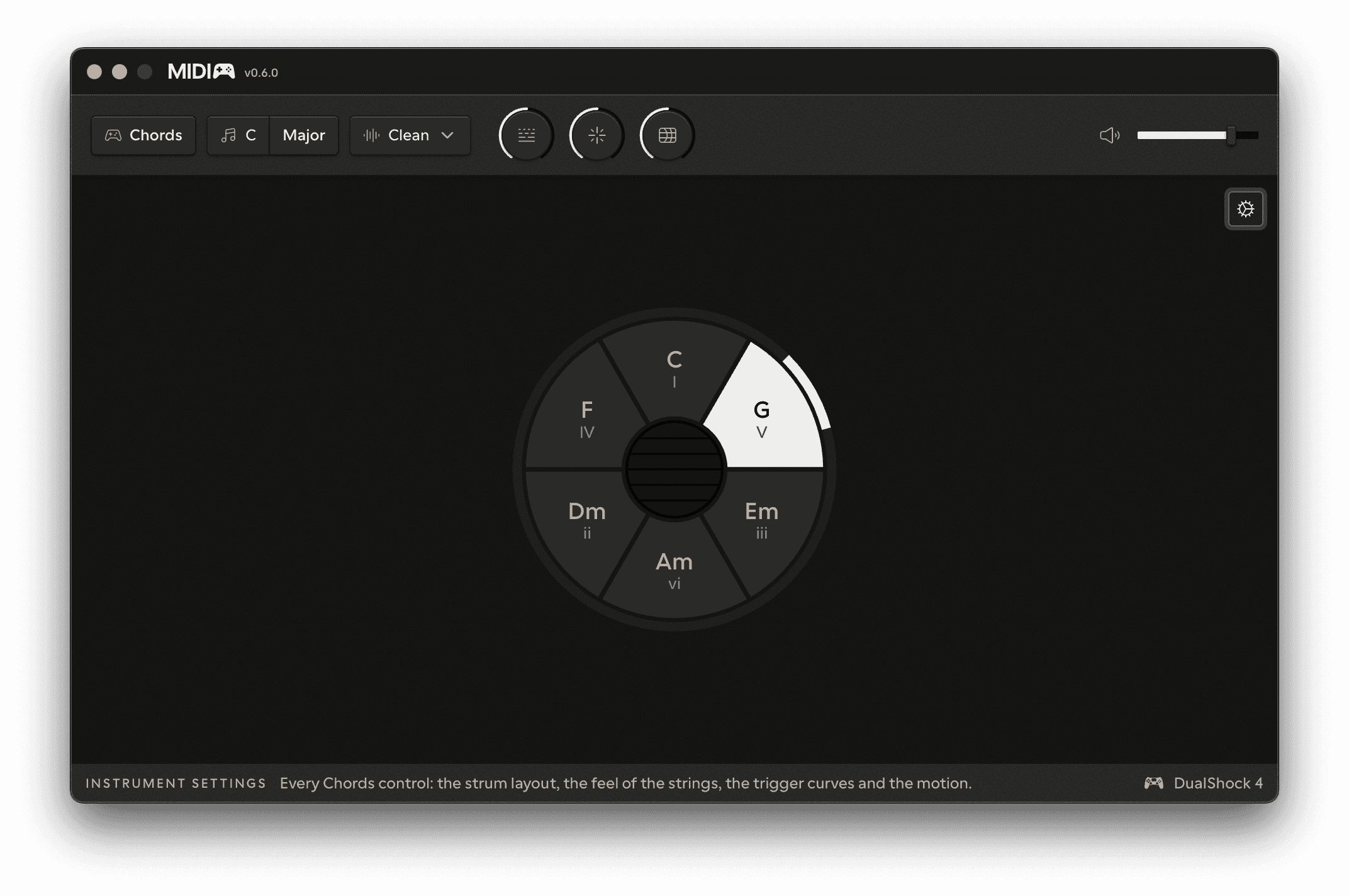
MIDIpad is a single window. It shows the instrument you're playing, the controls that belong to it, and nothing else. There are no presets to manage and no mapping editor: the instrument's feel is built in, and what you own are the musical choices.
The window is four bands, top to bottom.
The title bar
- The logo and version number sit at the left; click them and the settings open.
- No controller detected appears in the centre when no pad is connected. Everything else stays usable.
- Demo Mode sits at the right while the app is unlicensed. Click it to open the License pane.
The control bar
Below the title bar is a band of controls. At its left is the name of the instrument currently on stage - Chords or Drums - and clicking it switches to the other one. Pressing Options on the controller does the same without reaching for the mouse.
What sits next to it depends on which instrument is on stage:
| Chords | Drums | |
|---|---|---|
| First control | Key - the root and quality every chord is built from | Tempo - the speed of the streams and the backbeat |
| Then | Voice - what MIDIpad plays the chords with | Drums kit - the samples MIDIpad plays |
| Then | the dials for the chosen voice |
Volume sits at the far right in both instruments. It sets how loud MIDIpad plays itself and has no effect on what leaves the MIDI ports.
If the picker is set to MIDI Only, the dials and the Volume are hidden - there is nothing for them to act on. They return with the sound. See Sound and MIDI.
The stage
The instrument fills the middle of the window: the chord wheel for Chords, the dial for Drums.
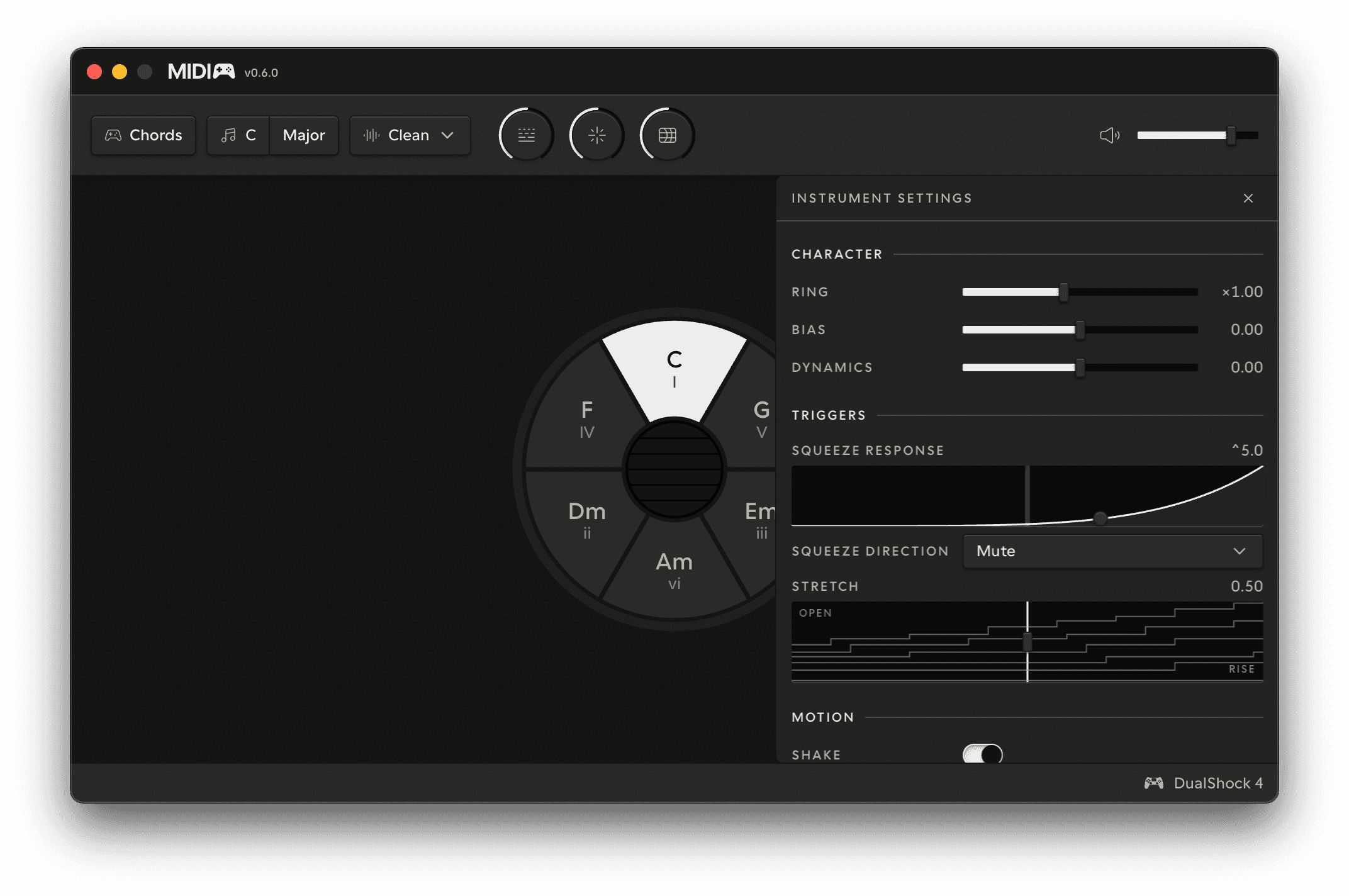
A gear in the stage's top-right corner opens a panel from the right-hand edge. Its contents follow the instrument:
- Chords - Instrument Settings: the feel of the strings, the trigger curves, and the motion.
- Drums - Kit: the note and channel each control sends, and which controls silence which.
The panel sits over the instrument rather than moving it, and you can keep playing with it open. It always opens closed - MIDIpad doesn't remember it between launches.
The help line
The strip along the bottom of the window explains whatever you're pointing at. Rest the cursor on any control and its name and a one-line description appear at the left. Nothing is hidden behind a tooltip delay, and nothing needs clicking to find out what it does.
At the right of the same strip is the connected controller and its charge.

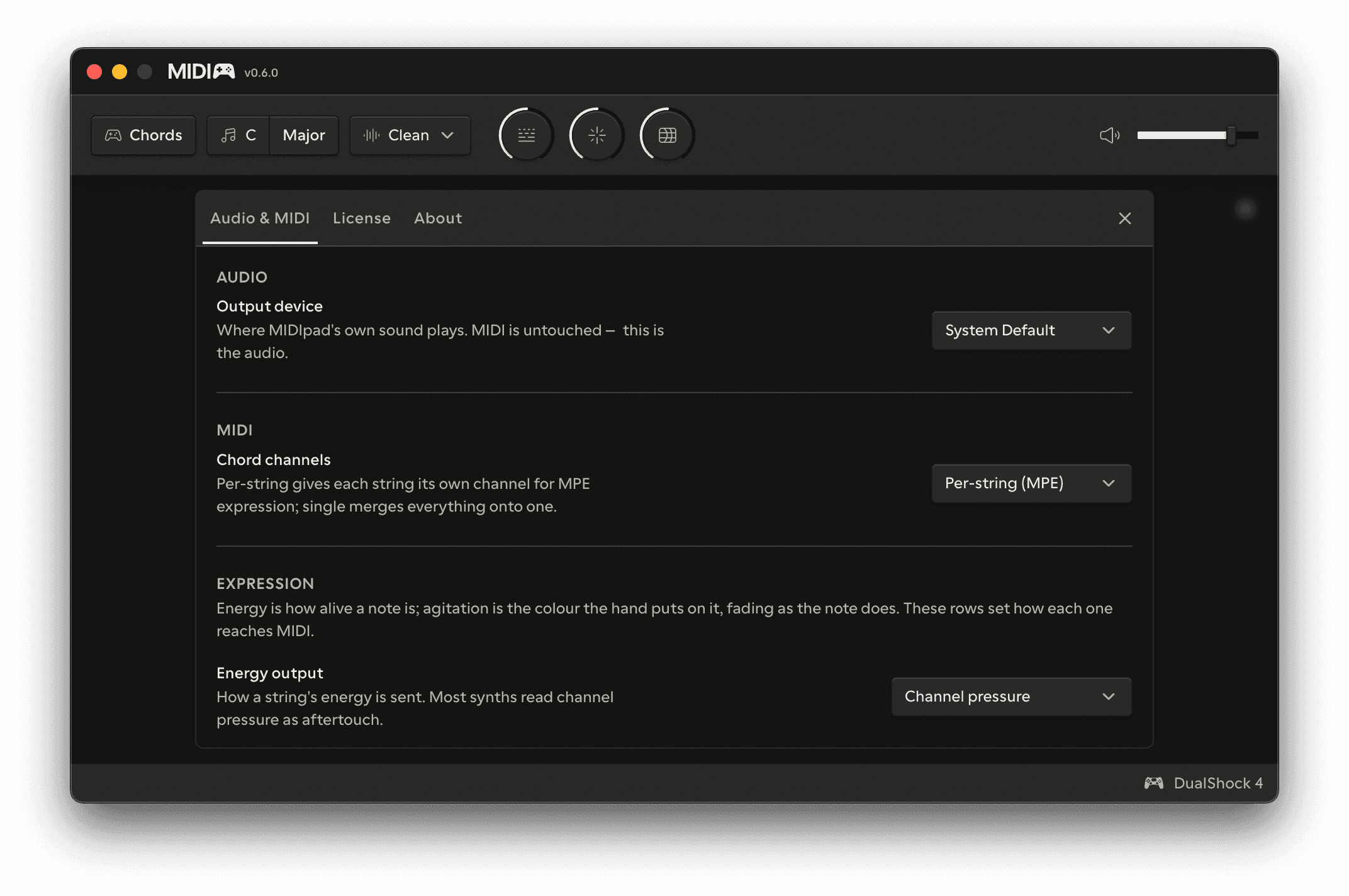
Settings
Press ⌘,, or click the logo, to open the settings dialog inside the window. It has three panes - Audio & MIDI, License, and About - and covers the app rather than the instruments. Anything that changes how an instrument plays lives in the stage panel instead.
Changes apply as you make them. There's no save step, and everything is remembered between launches. The full table is in App settings.