Demo vs licensed
Kind of like the CDs you used to get on the front of videogame magazines.
MIDIpad is a free download. Demo Mode has both instruments and nearly every gesture, and plays at MIDIpad's default settings.
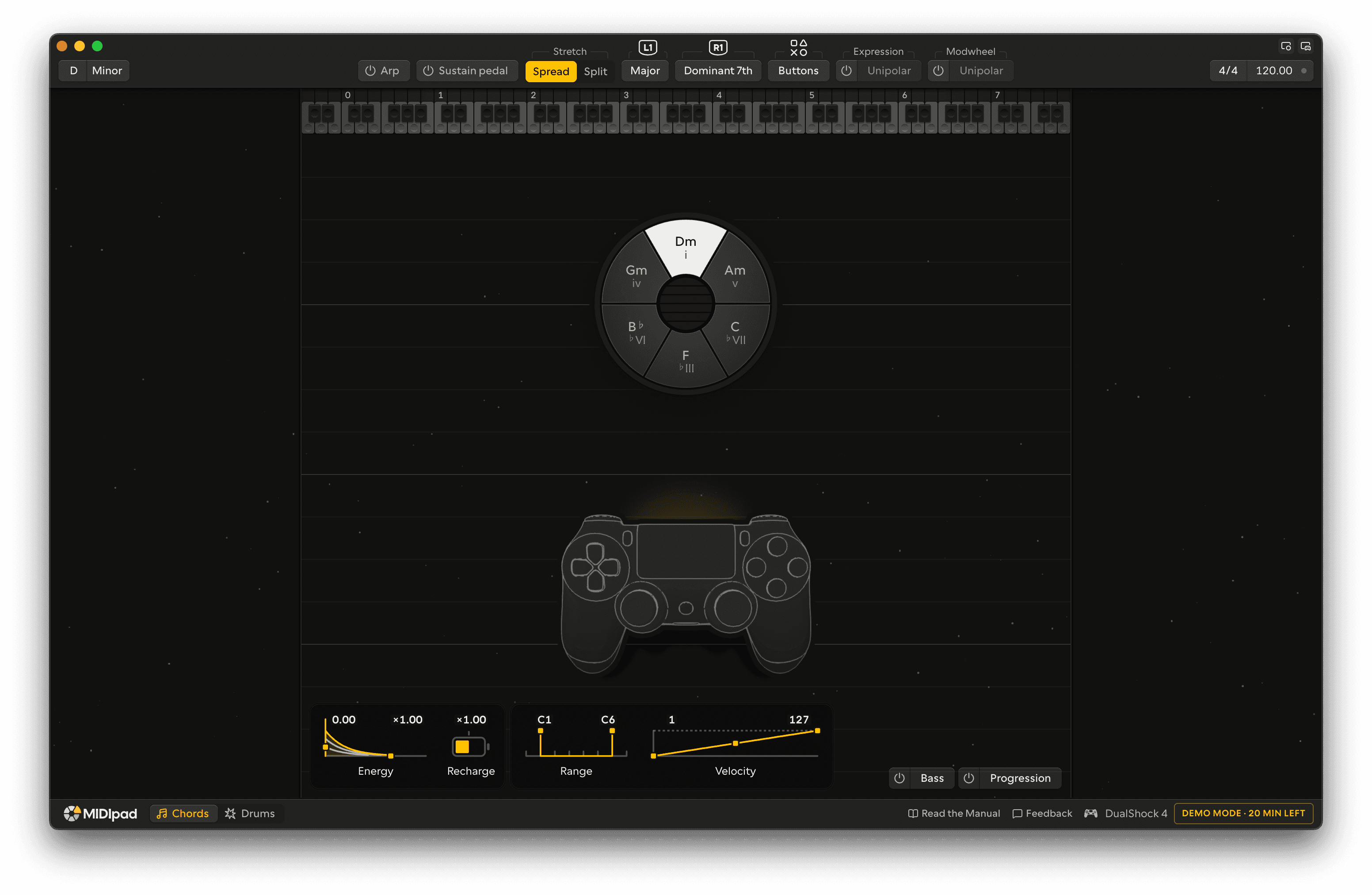
Each day, MIDIpad plays as the full version for 20 minutes from the first note, so you can try everything below. When the 20 minutes are up, it goes back to the demo the next time nothing is sounding. Quitting and reopening doesn't give the time back, and it starts again the next day.
What's always free
- Playing from the touchpad, the right stick and the buttons, the shoulder buttons' chords, softening and muting on the left trigger, Stretch, shaking, and tilting to play harder or softer, and everything Drums does with the sticks, the buttons, the d-pad and the touchpad.
- The key's root.
- The tempo.
- Single-channel Chords output: plain notes and velocity.
- Drums on its own port, at the General MIDI notes on one channel.
- The Controller Overlay.
- Brightness and contrast, and switching the visuals off.
What a licence unlocks
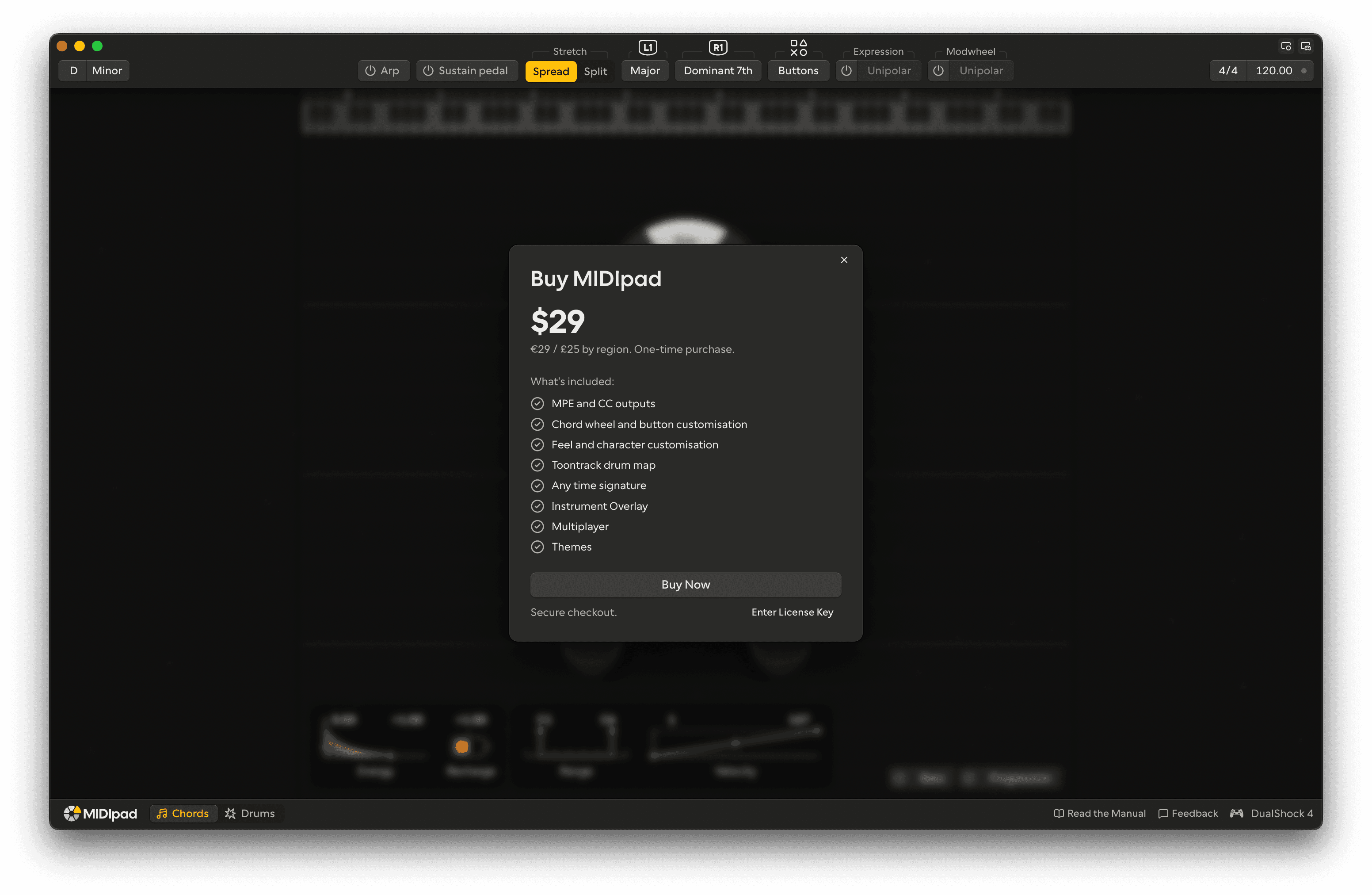
- The full output: both output configs - MPE and Single channel - and the expression in each of them, on every port. The demo sends notes and velocity on one channel and no pressure or timbre, so the touchpad's timbre and the energy of a held or shaken string don't reach your synth. See MIDI and MPE.
- Minor keys. The demo can use any root, but only in Major.
- The d-pad on Chords, which changes what the wheel plays as you go.
- More time signatures: the demo plays in 4/4, the full version has 2-12 for numerator and 4/8/16 for denominator.
- Making it your own: how long chords ring and how they answer your touch, how they're voiced, the sustain pedal, the tilt CCs, how hard and how swung the drums play, and fitting each part's output to your sounds. In the demo these all stay on their defaults.
- The chord wheel and the buttons: picking the mode L1 borrows from and the chord R1 plays, what L3 adds, and which strings each face button plays. See Finding more chords.
- The Arp and the Bass, which has its own port. See Arp and Bass and Progression.
- The progression on its own port: the chords you play as block chords on the beat. See Recording the progression.
- Multiplayer: two controllers at once. See Multiplayer.
- The Drums settings: Keymap for your drum library; and Snare can be switched from Auto to On R2, giving you a bit more control over backbeat placement.
- All themes: the demo gets the default one.
- The Instrument Overlay, a floating always-on-top HUD you can position over your DAW for visual feedback without the full window open. See The overlays.
Activating
- Buy MIDIpad. Your licence key arrives by email.
- Click Open MIDIpad on the purchase page, which opens the app with the key filled in, or open Settings → License and paste the key in. Press Activate. The key is checked online once, and then everything is unlocked.
- After that MIDIpad works fully offline. The licence is verified locally, and checked again in the background when you're online. If the licence is no longer valid, MIDIpad goes back to Demo Mode and shows a message.
Once you're activated the pane shows Activated as and a name for this machine - its model
and a short code, something like MacBook Pro · 4f9c.
The code is generated for the activation. It isn't your computer's name.
One key covers two machines at once. Remove Key in the same pane deactivates this machine so you can use the key on another one.