Overlays
One to make your life easier, one to show off what you're doing.
MIDIpad has two floating windows. One shows the active instrument's HUD and the other shows what your hands are doing on the pad right now.
The Instrument Overlay is a small always-on-top window with just the active instrument's wheel, separate from the main window so you can place it wherever you want. It floats above (practically) everything else, so you can keep an eye on what you're playing while you're working in your DAW.
Turn it on from Window → Instrument Overlay, or the same item in the menu-bar tray.
Instrument Overlay
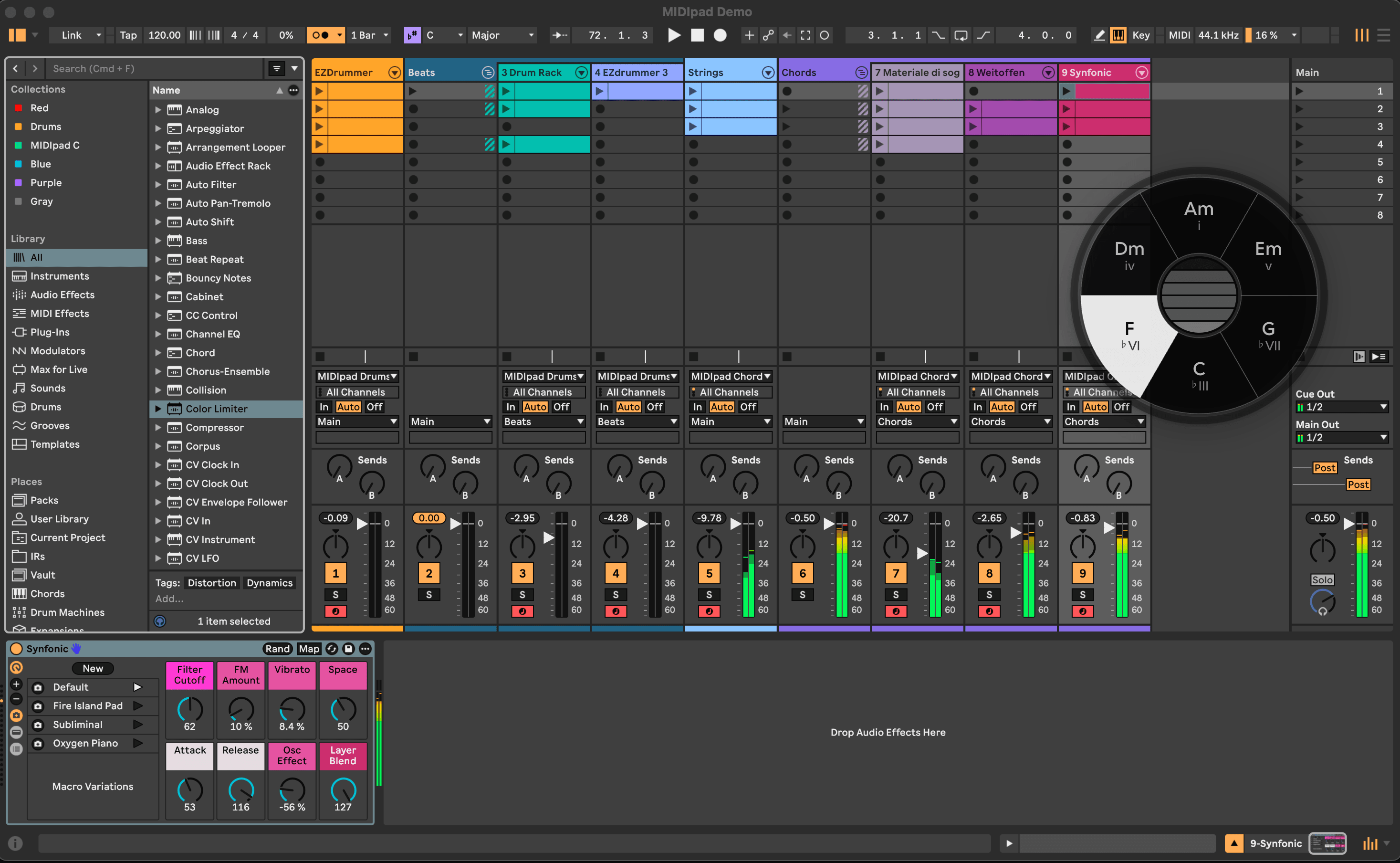
- Move it by dragging anywhere but the middle.
- Resize it by dragging any edge. It keeps a square shape.
- Dismiss it from Window, from the tray, or with ⌘W while it has focus.
- Double click the center of it to summon the main window.
The overlay shows whichever instrument is active, and changes when you switch instrument. While it's open the main window hides its own wheel so you can see the visualiser a bit better and not have too many spinning whirling things bouncing around on the screen at once.
It's drawn in plain black and white whichever theme you're on, so it should stay legible over whatever's behind it.
Controller Overlay
The second floating window draws your pad, live, so you can demonstrate how you're making this insane noise to curious onlookers who think you're just playing video games.
Is Ableton a video game? I suppose it could be.

Turn it on from Window → Controller Overlay or the tray menu. It works in the demo. It's got a little "Demo Mode" label on it without an upgrade, that of course goes away with one. While the demo is playing as the full version, the label shows the minutes left.