Main window
Orienting yourself in a new place.
Most of MIDIpad is a single window. It shows the instrument you're playing, its controls, and some pretty shapes in the background.
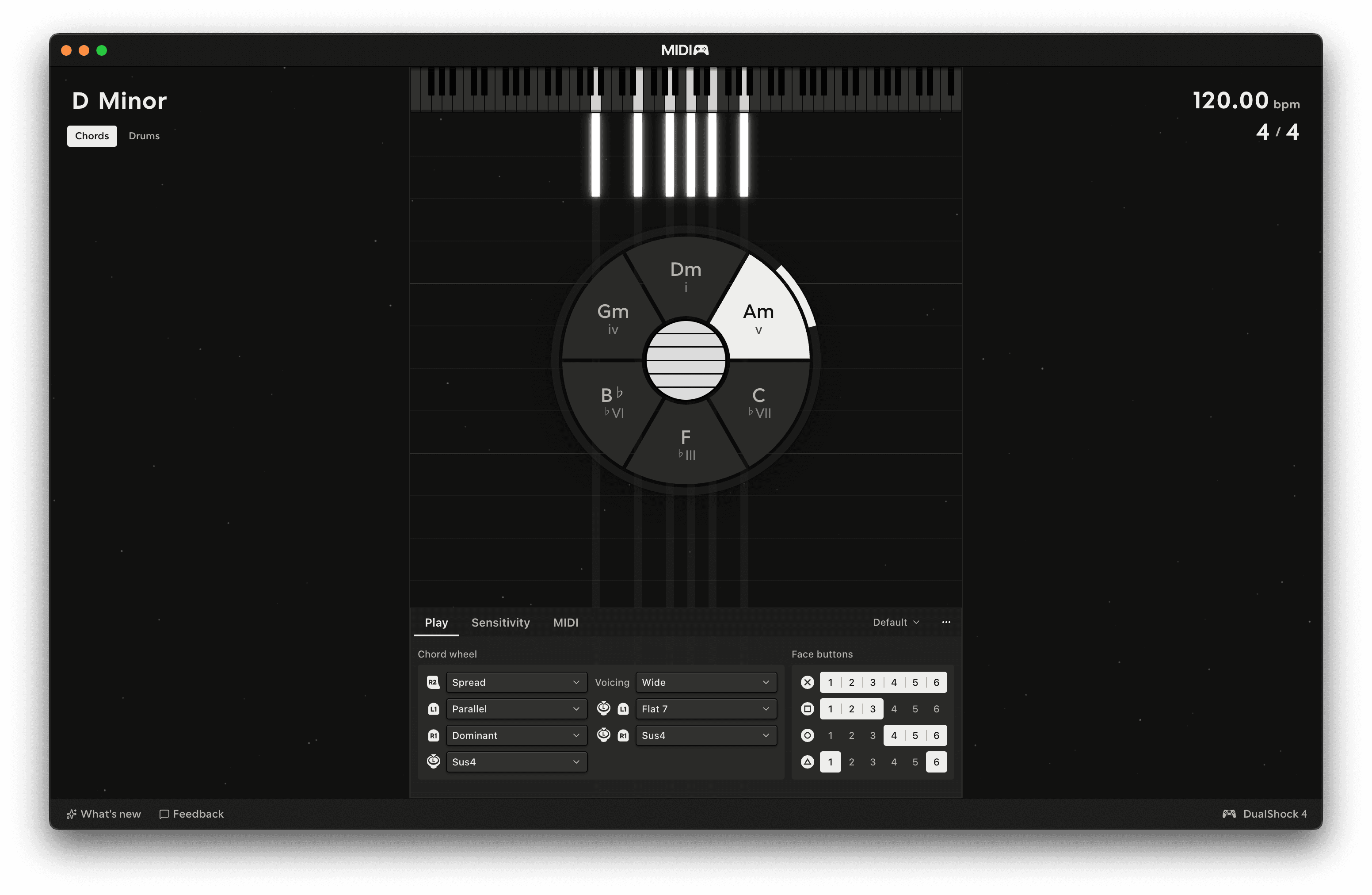
Title bar
| Where | What's there |
|---|---|
| Left | Key - the root, and whether the key is Major or Minor |
| Centre | The logo. Click it to open the settings window |
| Right | Time signature and Tempo - see Tempo and time signature |
On a wide window the key, time signature and tempo move to the corners of the stage instead, and the instruments, Chords and Drums, appear under the key. Click one to switch. On any size of window you can switch from the Instrument menu, or with Options on the pad.
Stage
The instrument fills the middle of the window - the chord wheel for Chords, the dial for Drums. The notes you play fall down the screen behind it. See Themes.
In Multiplayer the stage splits in two, with Chords on one side and Drums on the other.
Instrument panel
The panel for the current instrument runs across the bottom of the window, with its settings on tabs: Play, Sensitivity and MIDI for Chords, Play and MIDI for Drums. The menu at the top of the panel loads and saves presets. See Chords and Drums.
Settings → Appearance → Auto-hide instrument controls, or the same item in the View menu, fades the panel out while the mouse is still.
Help line
The strip along the bottom of the window explains whatever you're pointing at. Hover over any control to see its name and a short description.
The strip also has What's new, which opens the changelog on the website, and Feedback, which opens the feedback form. Both are hidden when the window is narrow. The right end shows the connected controller and its battery level - click it and the controls reference opens, so you can see what all the things do. When no pad is connected it shows No controller detected instead. In Demo Mode, a Demo Mode button appears next to it, and shows the minutes left while you're playing the full version.
Settings
Press ⌘,, or click the logo, to open the settings window. The full table is in App settings. The menu bar is covered in Menus and tray.
Keep on Top
Window → Keep on Top floats the main window over your DAW. It's in the tray menu too, and it's remembered between launches.
Closing the main window
Close the main window and MIDIpad keeps running. The controller still plays, the ports stay open, and the overlays stay where they are. Bring the window back from the Dock, or from the tray icon's menu, which also has Settings, Keep on Top, the two overlays and Quit MIDIpad.