Connect a controller
Kind of integral to the experience, really.
MIDIpad reads your controller at the system level, so it keeps playing when it isn't the focused app. You can leave the app in the background and focus on your music.
Other apps can see the controller too, sometimes
Other apps might still see the controller while MIDIpad is running, so don't expect the two to share it cleanly. Things might glitch, so don't try to play Call of Duty or something while also using MIDIpad and expect it to work properly.
Yes, I know Call of Duty isn't available for macOS. You know what I mean.
Connecting
- Connect the controller to your computer: by USB cable, or pair it over Bluetooth the same way you would for gaming.
- Launch MIDIpad, or focus the window if it's already running. If you connect the pad while MIDIpad is running, a little popup in the corner confirms it. Click the controller's name at the right of the bottom strip to see what every control does. It's under Help → Controls… too.
- Play something (First sounds)
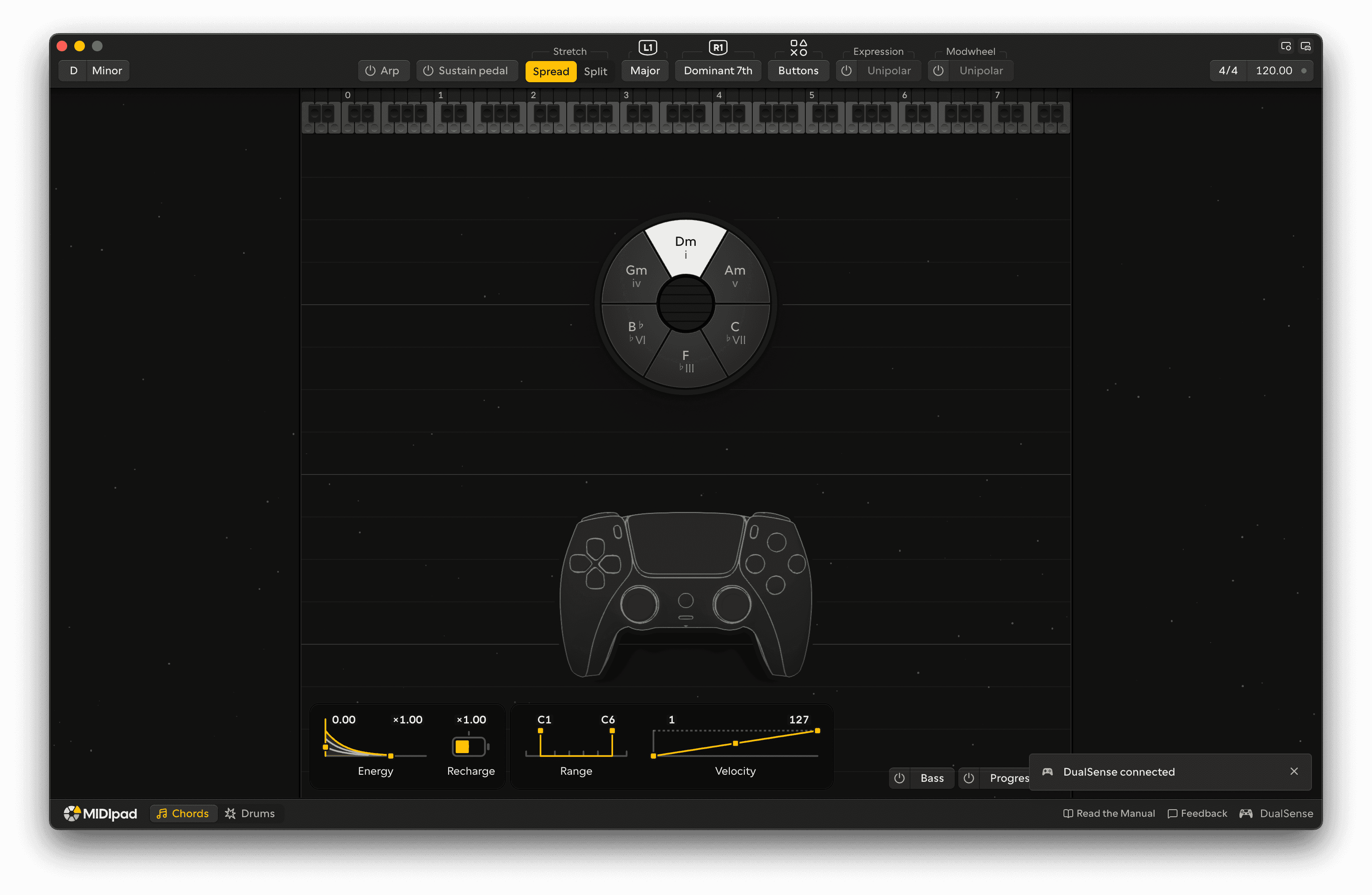
MIDIpad is built for the Sony DualShock 4 and DualSense controllers primarily, but it works with Xbox pads, the Switch Pro Controller, and anything the system recognises as a standard gamepad (on macOS, most of them pretend to be DualShocks, which has been quite painful to develop against sometimes). Controllers lists what works on each controller.
If the window still asks you to connect your controller, see Controller not detected.