Menus and tray
Wouldn't really be an app without menus.
MIDIpad
- About MIDIpad - the version and copyright.
- Check for Updates… - checks for a new version and downloads it. See Installation.
- Settings… ⌘, - opens the settings window.
Edit
- Undo ⌘Z and Redo ⇧⌘Z - step back and forward through changes to the instrument panels, including loading a preset.
- Cut, Copy, Paste and Select All - for the text fields.
Instrument
- Chords and Drums - which instrument is playing. Options on the pad does the same. They're hidden in Multiplayer.
- Multiplayer - two controllers at once, one on Chords and one on Drums. See Multiplayer.
- Chords Preset - switches between your saved Chords presets. See Changing the character.
- Chords Voicing - how the chord is spread across the strings, Wide or Close. See Changing the character.
- Chords Channels - how the Chords port is laid out: MPE, Multi-channel, Poly aftertouch or Single channel. See MIDI and MPE.
- Drums Preset - switches between your saved Drums presets.
- Drums Backbeat - whether the snare's backbeat comes in at a stick's rim or on the right trigger. See Playing the snare.
- Drums Channels - how the Drums port is laid out: MPE, Multi-channel or Single channel. See Drum notes and channels.
- All Notes Off ⌘. - releases everything on both ports. See MIDI.
View
- Theme - switches the theme. See Themes.
- Visuals - the falling notes and the key strip, on or off.
- Auto-hide Instrument Controls - fades the instrument controls while the mouse is still.
- Actual Size ⌘0, Zoom In ⌘+, Zoom Out ⌘- - scale the whole window, from half size to double. See Accessibility.
Window
- Keep on Top - floats the main window over everything else.
- Instrument Overlay and Controller Overlay - show or hide the two floating windows: the instrument's wheel, and your pad drawn live. See Overlays.
Help
- Welcome & Tour… - opens the tour you see the first time you open MIDIpad.
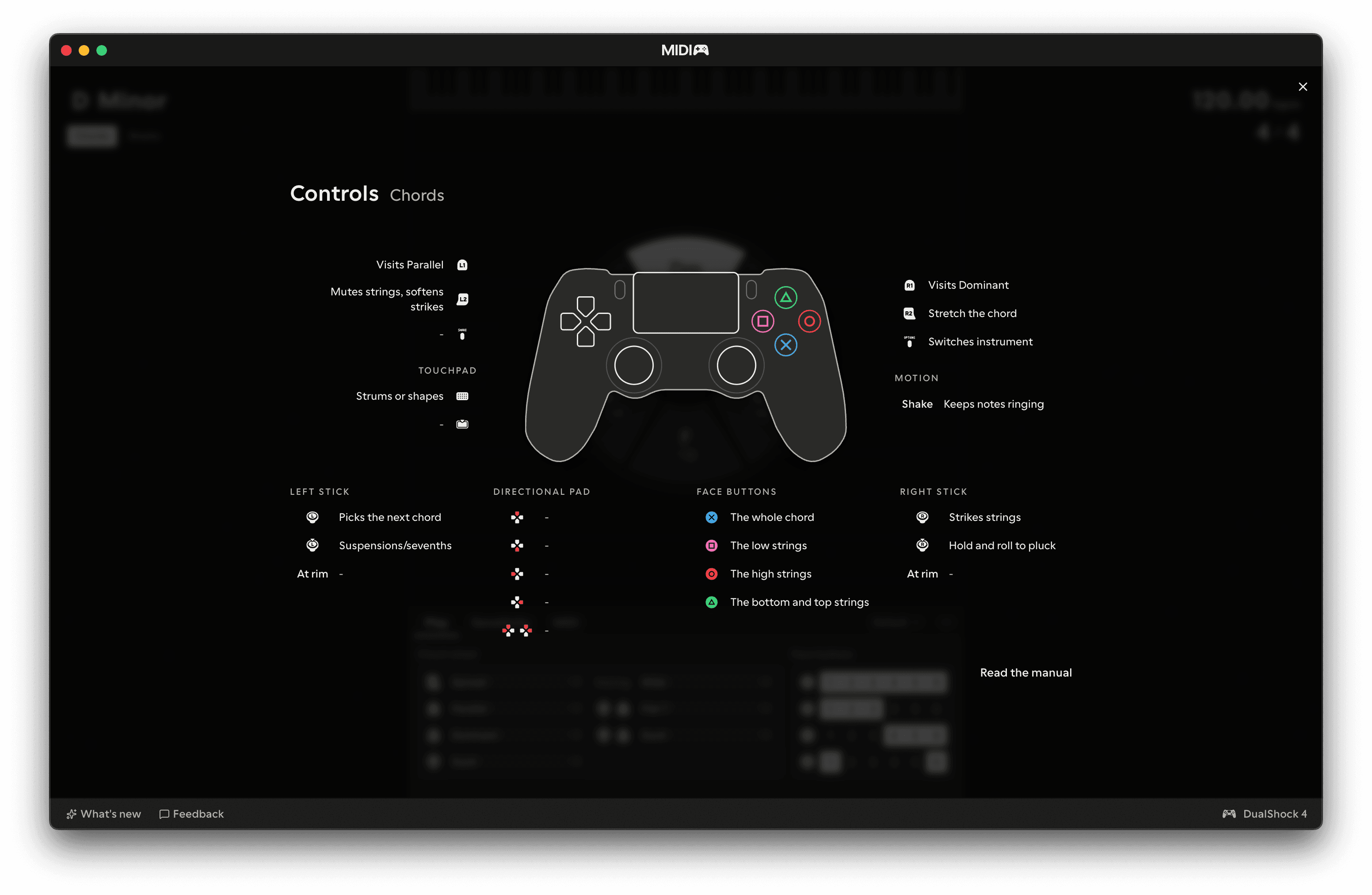
- Controls… - what every control on the pad does, for the instrument you're playing.
- Buy MIDIpad… - in the demo, shows the price and what the full version includes.
- Send Feedback… - the feedback form, with a diagnostics snapshot attached unless you turn that off.
- Copy Diagnostics - the same snapshot on the clipboard.
- Reveal Log - opens the log file.
- MIDIpad Manual - opens this manual in your browser.
- MIDIpad Website - opens the website in your browser.
The tray icon
Click the MIDIpad icon in the menu bar for a short menu that works with the main window closed:
- Open MIDIpad opens the main window.
- Settings… opens the settings window.
- Keep on Top, Instrument Overlay and Controller Overlay are the same switches as in the Window menu.
- Quit MIDIpad quits.